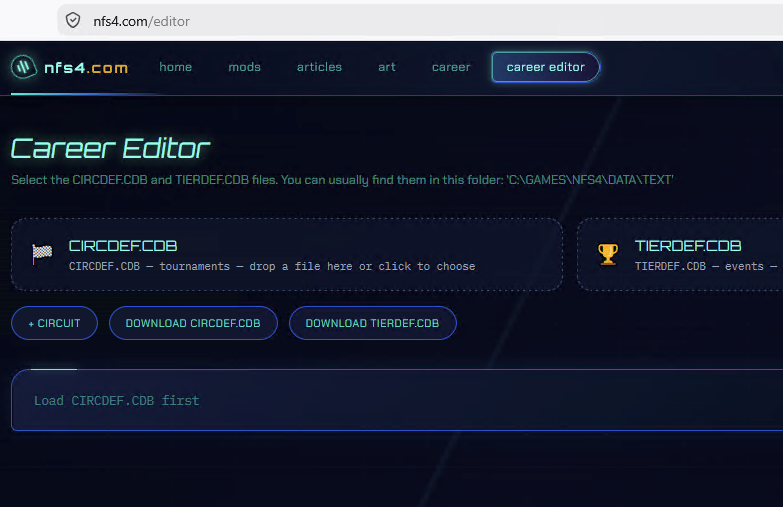
The career file editor for Need for Speed 4: High Stakes. It can be used to change tournaments, tracks, race conditions, car restrictions, prizes, and the event lineup in championship groups.
Before you start, be sure to back up the original game files. Although the editor does not immediately modify
CIRCDEF.CDBandTIERDEF.CDBin the directories they were loaded from, the modified files must be placed in the game folders for the game to use them, and incorrect values can cause errors or prevent you from loading or continuing a career.
If you have already started a tournament in your career, replacing the career files with different ones may make it impossible to continue the tournament, causing both graphical and logical errors in opponent behavior. In that case, withdraw from the tournament you started and begin a new one.

Required files
The editor works with two files from the game folder (the files are located in the game folder, for example: C:\GAMES\NFS4\DATA\TEXT):
CIRCDEF.CDB— describes tournaments and their races: tracks, laps, opponents, restrictions, and prizes.TIERDEF.CDB— defines the championship structure: group names, the tournaments in each group, and unlock links.
For full career editing, load both files. If you only need to change individual tournaments, loading CIRCDEF.CDB is sufficient, but TIERDEF.CDB is also required to distribute tournaments among groups.
Loading files
- Open the editor page.
- Drag
CIRCDEF.CDBto the area with the flag, or click the area and select the file manually. - Drag
TIERDEF.CDBto the area with the trophy, or select it through the file open dialog. - Wait for the message showing the number of loaded tournaments and events.
The editor accepts only files with the corresponding names, CIRCDEF.CDB and TIERDEF.CDB.
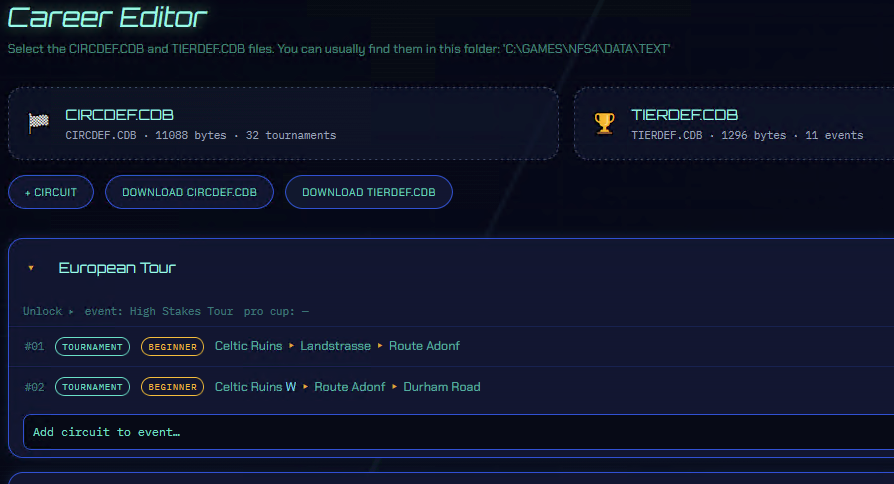
If a file is not recognized or is too small, an error message will appear. Check that you selected the original file of the required type, rather than a saved copy of another file.
Career tree
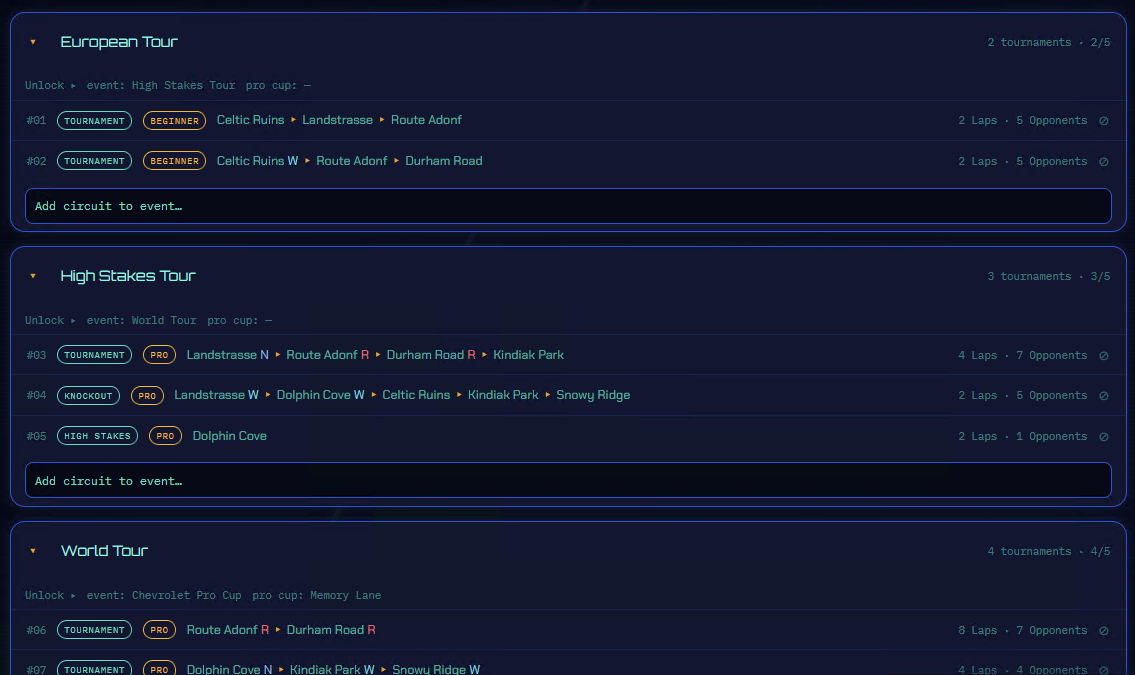
After loading the files, the editor displays the list of championship groups. Each group contains tournaments. A tournament is displayed with brief information:
- tournament number;
- event type;
- opponent difficulty level;
- track sequence and special conditions;
- number of laps and opponents.
You can rename a group heading directly in the list. Clicking the heading collapses or expands the group contents.
If a tournament is not linked to any group from TIERDEF.CDB, it is shown in a separate unassigned tournaments section.
Adding a tournament
The Add tournament button creates a new tournament using safe initial values. CIRCDEF.CDB must be loaded first.
The new tournament receives the first available identifier. After creation, you can open and configure it just like any other tournament.
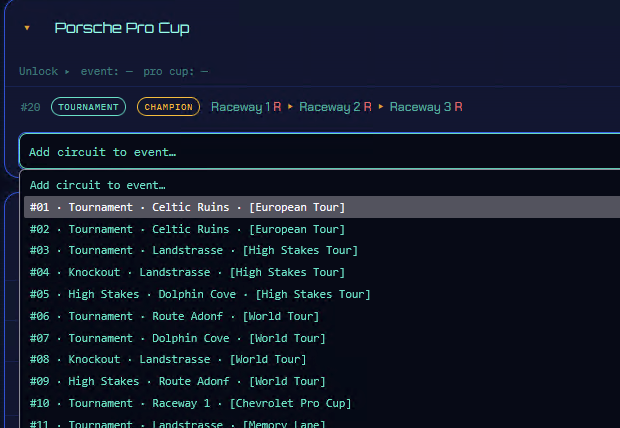
To add a tournament to a group, select the required group in the add list below its events. A group can contain no more than five tournaments. If the tournament is already in another group, the editor will ask you to confirm the move.
Editing a tournament
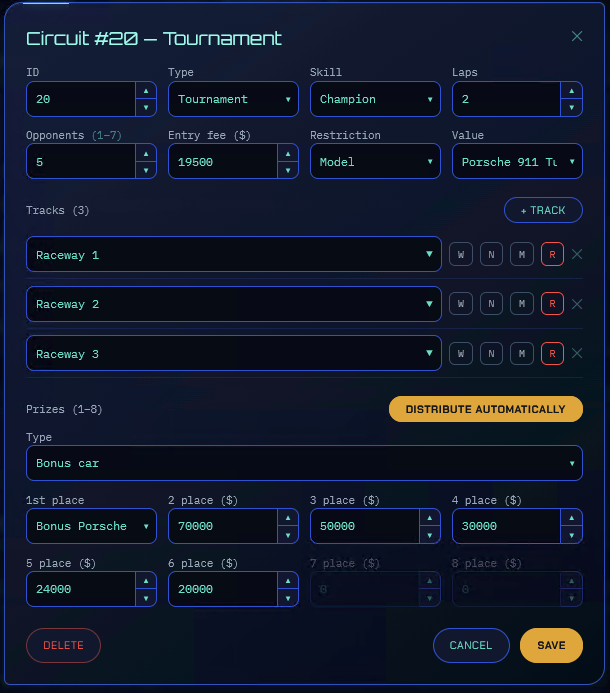
Click a tournament row to open the editing window. Changes are applied only after clicking Save. The Cancel button closes the window without saving the current changes.
Main parameters
ID — the tournament's unique number. It must be positive and must not match the ID of another tournament.
Type defines the event rules:
- Tournament — a regular competition with cash prizes or a bonus car.
- Knockout — a race in Knockout format. The number of opponents can be increased to 14, although it is better not to exceed 8 (14 is simply fun to try!).
- High Stakes — a special event where the prize is the opponent's car. The number of opponents is fixed for this type.
Difficulty sets the opponent level and the base prize amount:
- Begginer;
- Pro;
- Champion.
Laps — the number of laps on each selected track. Values from 1 to 99 are allowed (larger values have not been tested, so use them at your own risk ;) ).
Opponents — the number of opponents in a regular tournament. A standard tournament can have 1 to 7 opponents; a Knockout can have 1 to 14.
Entry fee — the amount the player pays to enter the tournament.
Car restriction
The Restriction field determines which cars are allowed to participate:
- Class — only the selected class, such as AAA, AA, A, or B.
- Class and below — the selected class and slower classes.
- No restrictions — any car is allowed.
- Model — only the selected car model.
- Manufacturer — cars from the selected manufacturer.
The restriction value field changes automatically depending on the selected type. For a model or manufacturer restriction, select the required option from the list.
Tracks and conditions
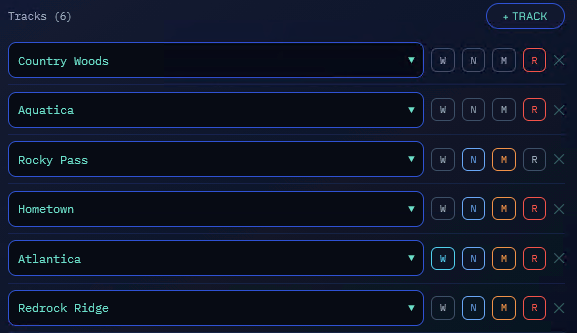
The Tracks section defines the tournament route. For each track, you can choose:
- track name;
- rain (W);
- night (N);
- mirror mode (M);
- reverse direction (R).
Flags can be combined. For example, a track can be rainy and at night at the same time. The order of tracks in the list corresponds to the order of races in the tournament.
The Add track button adds another race. A tournament can contain 1 to 8 tracks. The button with an X removes a track from the list.
Prizes
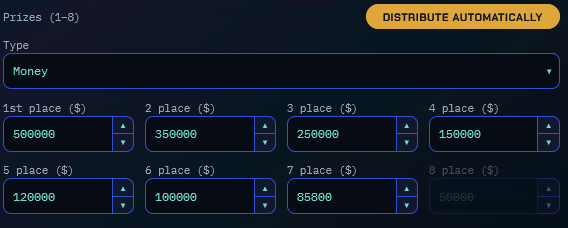
Regular tournaments offer prizes for finishing positions. The first prize can be cash or a bonus car. All other prizes are specified as cash amounts.
The number of active positions depends on the number of opponents. For example, with three opponents, prizes after fourth place are not used.
The Calculate prizes button automatically fills in the amounts based on the first prize and difficulty level. This is a useful starting point, but you can edit the values manually after calculation.
For the High Stakes type, the opponent's car is selected instead of a cash prize. Available options include Mercedes SLK-230, Jaguar XKR, Ferrari 550 Maranello, Lamborghini Diablo SV, Mercedes CLK-GTR, and McLaren F1 GTR.
Deleting a tournament
To delete a tournament, open it and click Delete. The editor will ask for confirmation. After deletion, the tournament is also removed from all championship groups.
Deletion cannot be undone within the editor.
Saving files
After making changes, the download buttons become available:
- Download CIRCDEF.CDB saves the modified tournaments;
- Download TIERDEF.CDB saves the modified group structure.
Download both files if you edited both the tournaments and their group distribution. Save the originals in a separate folder before replacing the files in the game.
- Close the game if it is running.
- Copy the downloaded files to the folder containing the original
CIRCDEF.CDBandTIERDEF.CDB. - Confirm the file replacement, or rename the originals as backups first.
- Start the game and check your career.
Important notes
- The editor stores the current working copy in the browser's
sessionStorage. When you reopen the page in the same browser, changes may be restored automatically. - Clearing site data or using another browser will delete this working copy. This does not replace downloading the modified files.
- Group names are stored in a format compatible with the game files. Do not use names that are too long: the editor limits their length.
- If the game can no longer load the career after replacing the files, restore the backups and check the changes one at a time.
- Do not delete or rename files unless you are sure which ones your game installation uses.
Updates
-
Editor Update (September 3, 2026)
Added options for fine-tuning AI behavior.
-
T16 Support in the Career Editor
Added support for the career parameters introduced by the T16 patch.
Comments
Collapse thread started by Herms on 2026-09-17
Is it possible to create an HSV Pro Cup like in the Australian version with the MHRT commodore bonus as the prize? I didn't see HSV or Holden in the manufacturer restriction list.
The American/European versions didn't originally have that car, so it wasn't included in the lists in my version of the game's code.
I'll look into what can be done without modifying the game's code.
I also have an idea to make it possible to use any car as a prize.
I've looked into everything I could find related to the Australian version of the game. At first, I thought it would be possible to add AU support to the Career Editor without modifying the game executable itself.
However, it turns out that the Australian PC version of NFS 4 contains no entries for "HSV Pro Cup", nor does it contain HSV or Holden as manufacturers in the relevant files.
More importantly, the executable itself doesn't appear to have support for setting the MHRT Commodore as a prize for completing a circ. While a manufacturer can be added manually, the prize car can only be selected from the cars already supported by the original Career system.
I also installed and tested the Australian version of NFS 4 myself and couldn't find any mention of "HSV Pro Cup".
So at this point, the existence of the "HSV Pro Cup" in the Australian PC version is questionable. It may have existed only in the PlayStation version.
In the modification I'm currently developing, I plan to add the ability to select any car as a prize. This should make it possible to create a tournament similar to the one found in the Australian PS1 version of the game.
Collapse thread started by Herms on 2026-09-24
Wow, I didn't know that. Thanks for taking the time to look into this. You have some very exciting mods in development. Especially having multiple careers to pick from along with hot pursuit/traffic options. Keep up the good work.
Thanks for the support!
If you have any ideas or features you'd like to see in the mod, feel free to share them. I'll try to add them if possible.
Log in to leave a comment and rate. Log in