n4patch Replay Free Camera
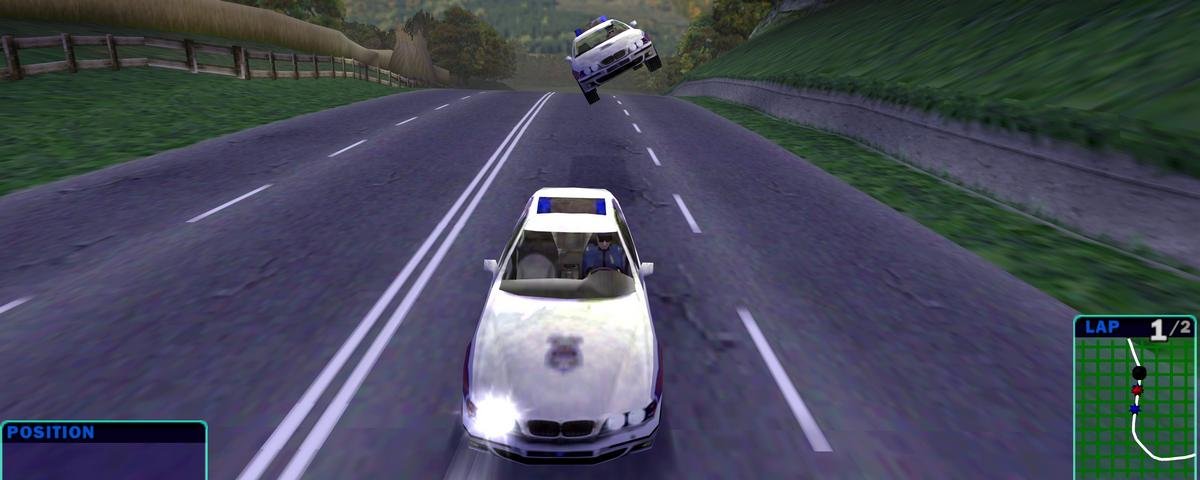
ReplayView: Free Camera and Replay Controls for NFS4 High Stakes
ReplayView is a module for Need for Speed: High Stakes that adds a free camera, vehicle tracking, replay rewind and fast forward, and custom camera presets.
The module works through the n4patch system, so there is no need to modify nfs4.exe.
Version: 0.7.4
Module file: replayview.n4p
SHA256: f303ca5828969adf6b9bd5aa940aad169eed3855154d94dfda9fcec2ef3189ef
Features
- Free Camera: Move freely around the track in any direction using the keyboard and mouse.
- Vehicle Tracking: Make the camera follow a selected car, match its rotation, or combine both modes.
- Replay Rewind and Fast Forward: Return to earlier moments of a race and navigate through individual simulation ticks.
- Camera Presets: Save up to 10 custom camera angles for each track.
- Movement While Paused: The free camera remains fully controllable even when replay playback is paused.
- Customizable Controls: Adjust key bindings, movement speed, and mouse sensitivity.
ReplayView Demo Videos
Free Camera and Vehicle Tracking
https://youtu.be/j2-5-JJ9yic
Demonstration of free camera movement, custom viewing angles, and vehicle tracking in NFS4: High Stakes.
Replay Rewind and Fast Forward
https://youtu.be/AJqzFUgeMAE
Demonstration of replay rewind, fast-forward, and precise navigation through recorded race moments.
Custom Camera Presets
https://youtu.be/tYJVzSmJlTM
Demonstration of saving and switching between custom camera positions, with up to 10 presets per track.
Installation
Step 1: Install the n4patch Loader
ReplayView requires the n4patch loader.
If you have not installed it yet, download it and follow the installation instructions:
https://nfs4.com/mods/n4patch-loader
The recommended loader is version.dll.
If your game already uses version.dll, choose another supported loader DLL.
Step 2: Install ReplayView
Copy replayview.n4p into the patches folder inside your game directory.
Copy replayview.ini into the same folder as nfs4.exe.
Example folder structure:
NFS4/
  nfs4.exe
  version.dll
  replayview.ini
  patches/
    replayview.n4p
The replayview.ini file is optional. If it is missing, the default settings will be used.
Step 3: Start the Game
Launch NFS4 normally.
The loader will automatically detect and apply replayview.n4p.
If the module does not work, check n4patch.log in your game directory.
How to Activate Free Camera
- Start a race and enter Replay mode.
- Cycle through the available cameras until you select Camera 7.
- You can now move the camera freely using the keyboard and mouse.
- Press
Lto switch to the next replay camera and exit Free Camera mode.
By default, Free Camera is available only during replay playback.
While Free Camera is active, moving the mouse will not cause the replay control panel or in-game cursor to appear.
Free Camera Controls
| Key | Action |
|---|---|
W / S |
Move forward / backward |
A / D |
Move left / right |
R / F |
Move up / down |
| Mouse | Rotate the camera horizontally and vertically |
Q / E |
Camera roll |
Shift |
Move 3 times faster |
Ctrl |
Move 12 times faster |
L |
Next replay camera (exit Free Camera) |
Space |
Pause / resume playback |
When Shift and Ctrl are held simultaneously, the Ctrl speed multiplier takes priority.
Tip: Use Ctrl to move quickly between distant parts of the track, and Shift for more precise camera positioning.
Vehicle Tracking
ReplayView allows you to attach the camera to any car participating in the race.
| Key | Action |
|---|---|
Z / X |
Switch between vehicles |
V |
Toggle position tracking |
C |
Toggle rotation tracking |
B |
Move the camera behind and slightly above the selected vehicle |
Position Tracking (V)
When position tracking is enabled, the camera moves together with the selected vehicle.
Its relative position is preserved. For example, if the camera is positioned beside the car, it will remain beside it as the car turns.
You can still use WASD, R, and F to adjust the camera's position relative to the vehicle.
Rotation Tracking (C)
When rotation tracking is enabled, the camera follows changes in the vehicle's orientation.
The mouse and Q/E keys remain active, allowing you to adjust the viewing direction without disabling tracking.
Example: Creating a Custom Chase Camera
- Select a vehicle using
ZandX. - Press
Bto move the camera behind the vehicle. - Press
Vto make the camera follow the car. - Press
Cto make the camera follow its rotation as well. - Adjust the distance and viewing angle using the keyboard and mouse.
This allows you to create your own chase camera variations, side views, overhead shots, or almost any other perspective.
Replay Rewind and Fast Forward
In the original NFS4, replays are played back by re-simulating the race. ReplayView adds the ability to return to earlier moments using saved snapshots of the game's simulation state.
Rewind and fast forward work with any replay camera, not just Free Camera.
| Keys | Action |
|---|---|
, / . |
Backward / forward by 1 tick (1/64 second) |
Shift + , / . |
Backward / forward by 1 second |
Ctrl + , / . |
Backward / forward by 10 seconds |
Space |
Pause / resume playback |
When a rewind or fast-forward key is held down, automatic key repeat starts after one second.
If you fast-forward beyond the recorded snapshot history, ReplayView uses accelerated simulation to reach the selected point.
Rewind Buffer Size
By default, ReplayView stores 768 ticks, corresponding to approximately 12 seconds of replay history.
With visual effect snapshots enabled, this buffer requires approximately 130 MB of RAM.
You can increase the history buffer size in replayview.ini, but longer recording periods require more memory.
You can also customize the rewind step sizes and automatic key repeat intervals.
Limitations: Some audio and visual effects may not be restored perfectly. Rewind is still an experimental feature.
Camera Presets
ReplayView allows you to save up to 10 custom camera configurations per track.
This is especially useful for creating videos when you need to switch quickly between predefined camera positions.
| Keys | Action |
|---|---|
Ctrl + 0–9 |
Save the current camera configuration |
0–9 |
Load a saved camera preset |
How to Save a Camera Preset
- Enter Free Camera mode.
- Position the camera and adjust its viewing direction.
- Optionally enable vehicle tracking using
VandC. - Press
Ctrland any number key from0to9. - To return to that camera configuration, simply press the corresponding number key.
Camera position, orientation, and vehicle tracking settings are saved.
Presets are stored in:
Data\Tracks\<track_name>\freecam.ini
Each track has its own set of 10 presets. These settings are preserved between game sessions.
If the vehicle associated with a saved preset is no longer available, the last available vehicle will be used instead.
Configuring replayview.ini
The replayview.ini file should be placed next to nfs4.exe.
It allows you to customize:
- Camera control keys.
- Normal and boosted movement speeds.
- Mouse sensitivity.
- Camera position when teleporting to a vehicle.
- Rewind buffer size.
- Rewind and fast-forward step sizes.
- Automatic key repeat intervals.
- Visual effect snapshots during rewind.
For example, RewindTicks determines how many simulation ticks are stored in the rewind history.
Setting Rewind=0 completely disables snapshot recording and rewind controls.
To reverse a camera movement direction, you can swap the corresponding key assignments in the configuration file.
If the configuration file is missing, ReplayView uses its default settings.
Known Limitations
ReplayView is still under development, so some features have limitations:
- By default, Free Camera is only available during replay playback.
- Field of View (FOV) adjustment is not currently supported.
- Rewind does not guarantee complete restoration of all audio and visual effects.
- Compatibility depends on the version of
nfs4.exeand the n4patch loader.
Uninstalling ReplayView
To disable the module, remove or move replayview.n4p from the patches folder.
You can also delete replayview.ini if it is no longer needed.
Saved freecam.ini camera presets can be kept for future use.
There is no need to modify or restore nfs4.exe.
Links
n4patch Loader:
https://nfs4.com/mods/n4patch-loader
Other Mods:
https://nfs4.com/mods
Project Website:
https://nfs4.com
ReplayView is part of the unofficial n4patch project for Need for Speed: High Stakes. Feedback, suggestions, and bug reports are welcome.
Known Issues
- Stuck AI Horn: During fast-forward, an AI car's horn may occasionally get stuck and continue playing until the replay is restarted.
- Camera Preset Hotkeys (1–3): Using camera presets assigned to keys
1,2, or3also triggers the game's audio messages.
コメント
まだコメントはありません。
コメント・評価にはログインが必要です。 ログイン